Mazda Connect
Outline
Mazda Connect is a system that allows users to use various functions such as displaying vehicle information, playing music, connecting to mobile devices, operating the air conditioner, and changing vehicle settings.
This manual only indicates a part of the information for Mazda Connect.
For detailed user information, refer to the Mazda Connect Owner's Manual.
The explanation of functions described in this manual may differ from the actual operation, and the shapes of screens and buttons and the letters and characters displayed may also differ from the actual appearance. Additionally, depending on future software updates, the content is subject to change without notice.
Using a cellular phone or CB radio in or near the vehicle could cause noise.


Home screen
The home screen consists of the following areas.
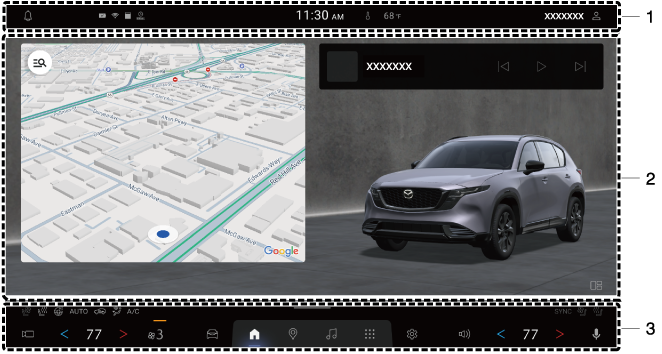
1 Status bar
2 Widget area
3 Navigation bar
Status bar
Displays user name, notification, time, and ambient temperature.
Widget area
Displays the status of the navigation system, audio, calendar, and i-ACTIVSENSE, and the vehicle status.
Navigation bar
Vehicles with Google built-in
Google Gemini or Google Assistant, Google Maps, Google Play, climate control system operation, camera screen display, vehicle control, home screen display, navigation system, audio system, Apple CarPlay™, Android Auto™, application list, settings, and volume operation are available.
Vehicles without Google built-in
Climate control system operation, camera screen display, vehicle control, home screen display, telephone, Apple CarPlay™, Android Auto™, audio system, application list, settings, and volume operation are available.
Mazda Connect functions
Vehicle status display (status bar)
Displays notification, time, ambient temperature, and user ( ).
).
User () displays the currently selected user name.
User can be registered to Mazda Connect. The information which you have set can be stored by performing the user registration.
For the user registration method, refer to the following.
Screen personalization ( )
)
The content displayed in the widget area can be changed.
Climate control system operation
The operation of the climate control system, steering warmer, seat warmer, and seat ventilation can be performed.
Refer to How to Use the Fully Automatic Climate Control System (Search).
Refer to How to Use the Seat Warmer (Search).
Refer to How to Use Heated Steering Wheel (Search).
Refer to How to Use the Seat Ventilation (Search).
Camera screen display ( )
)
The 360° view monitor image can be displayed.
Refer to How to Use the 360° View Monitor (Search).
Vehicle control ( )
)
i-stop, Mi-Drive, Driver Personalization System, and each i-ACTIVSENSE function can be switched on/off.
Refer to How to Use the i-stop (Search).
Refer to How to Use the Mazda intelligent Drive Select (Mi-Drive)/Drive Selection (Search).
Refer to How to Use the Driver Personalization System (Search).
Refer to i-ACTIVSENSE (Search).
Home screen display ( )
)
Home screen can be displayed.
Navigation system ( ) (Vehicles with Google built-in)
Your vehicle can be navigated to your destination using Google Maps, and Apple CarPlay™ or Android Auto™ application.
Google Maps can be displayed. When route guidance is being performed using an Apple CarPlay™ or Android Auto™ application, the application being used is displayed.
For vehicles without Google built-in, use the Apple CarPlay™ or Android Auto™ application for the navigation system.
Phone ( ) (Vehicles without Google built-in)*1
By connecting a Smartphone to Mazda Connect via Bluetooth®, you can use the hands-free call.
-
For vehicles with Google built-in, use “Phone” (
 ) from the application list.
Apple CarPlay™ ( ) (Displayed only during Apple CarPlay™ connection)
By connecting an iPhone® compatible with Apple CarPlay™, you can use Apple CarPlay™.
Android Auto™ ( ) (Displayed only during Android Auto™ connection)
By connecting an Android™ Smartphone compatible with Android Auto™, you can use Android Auto™.
Audio system ( )
)
You can listen to radio and music.
Application list ( )
)
Displays the list of applications.
Google Play ( ) (Vehicles with Google built-in)
To use Google Play, it is necessary to register a Google Account and log in.
If Google Play is used, you can easily download your favorite applications to your vehicle same as your Smartphone.
Your favorite music, podcasts, and audiobooks can be played using the downloaded applications without your Smartphone.
Settings ( )
)
You can change the settings for the Mazda Connect and the vehicle functions.
Volume operation ( )
)
Volume for Mazda Connect can be changed.
Google Gemini*1 ( ) (Vehicles with Google built-in)
Gemini will replace Google Assistant and become available through future updates.
Talk with Gemini for hands-free control, and help manage various tasks on the road. Owners can speak naturally, ask complex questions, and use follow-up queries to steer conversations without memorizing specific commands or phrases.
-
Google Gemini: An AI Assistant from Google
Check responses. Setup required. Compatibility and availability varies.18+
Internet connection and compatible operating system required.
Availability may vary by device, country, and language.