How to Use the Mazda Connect
Touch panel operation
The center display supports each touch operation.
Audio remote control switch operation
The audio remote control switch is installed to the steering wheel.
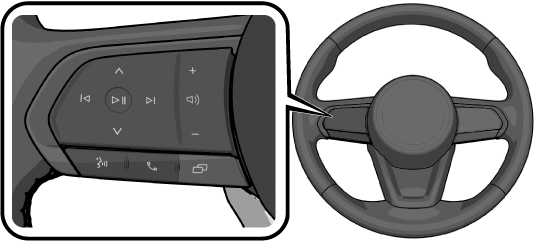
|
Buttons |
Explanation |
|---|---|
  |
Press Refer to How to Use the Instrument Cluster (Search). |
  |
When pressing
Pressing and releasing immediately Audio: You can switch tracks within the currently playing source. Radio (AM/FM/SiriusXM®): Switches sequentially between stations registered to your favorites.
Pressing and holding Audio: You can fast-forward or rewind the currently playing music. Radio (AM/FM): Switches sequentially between the currently received stations. Radio (SiriusXM®):
|
 |
Press Audio, radio (SiriusXM®): You can switch between play and pause. Radio (AM/FM): You can switch between mute and unmute. |
 |
Press If muted, mute is canceled.
When “Flick” or “Swipe” in “Steering Wheel Controls” is enabled, the volume can be adjusted according to your finger movement. (Some Models) Tap |
 |
Vehicles with Google built-in Press and release Press and hold Press and hold
Vehicles without Google built-in Press Press |
 |
Press |
 |
Press Refer to How to Use the Instrument Cluster (Search). |
 or
 to display a list in the instrument cluster screen for switching audio sources.
 or
 , the following operations are available by pressing and releasing immediately, or pressing and holding for each selected source.
 to allow you to perform the following operations for each selected source.
 or
 to adjust the volume.
 to answer an incoming call, end a call in progress, or cancel an outgoing call.
 to switch the instrument cluster screen.
The steering switch is a capacitive-type switch, and if it does not respond as intended, check the following.
-
If the switch symbol is operated far away from the center, the switch may not respond as intended.
-
If the switch is operated using only the tip of your finger or if you hold your finger too flat and operate it using the pad of your finger, the switch may not respond as intended.
-
If there are water droplets or dirt on the surface of the switch, the switch may not respond as intended.
Switch the ignition OFF and clean the surface of the switch.
-
Thick winter gloves may make the switch difficult to respond when touched.
Change “Touch Sensitivity” under “Steering Wheel Controls” in the settings to “High” or if that does not improve the issue, remove your gloves before operating the device.
Tap
 displayed on the navigation bar of the center display to set, or consult an Authorized Mazda Dealer.
-
Whenever possible, avoid placing fingers or hands on the switch operation panel unless intended.
The switch may temporarily not respond as intended, but it will return to normal operation if you release your finger from the switch for a few seconds.
-
When performing flick operations such as setting the vehicle speed, the switch may not respond if your finger moves too slowly.
Moving your finger quickly improves switch responsiveness.
-
If the left and right switches are operated at the same time, one of the switches may not respond to your request.


Gemini operation (Vehicles with Google built-in)
Many vehicle functions can be operated using voice with Gemini or Google Assistant.
Say “Hey Google” to activate Gemini or Google Assistant.
Perform the following operation to activate Gemini or Google Assistant.
-
Speak the phrase “Hey Google”.
-
Tap
 in the application list.
-
Tap
 on the navigation bar.
-
Press and release immediately
 on the audio remote control switch.
To activate Gemini or Google Assistant with “Hey Google”, it is necessary to enable the activation command using “Settings”.
Tap displayed on the navigation bar of the center display to set, or consult an Authorized Mazda Dealer.