How to Use Google Assistant (Voice Control)
Vehicle Operation
|
Category |
Function |
Command |
|---|---|---|
|
Climate control system |
Fan |
Turn fans on/off |
|
Fully Automatic Climate Control System |
|
|
|
Temperature setting (relative) |
Turn up/down the temperature (for the driver/passenger) |
|
|
Temperature setting (absolute) |
Set the temperature to xx degrees (for the driver/passenger) |
|
|
Air flow setting (relative) |
Turn the fans up/down |
|
|
Air flow setting (absolute) |
Set the fan speed to 1―7 |
|
|
Air flow direction setting |
Point vents to face/floor/windshield/face and feet/feet and windshield |
|
|
Defroster |
Turn the defroster on/off |
|
|
Recirculation/Fresh air setting |
Turn the air recirculation on/off |
|
|
SYNC (synchronized temperature) |
Turn on/off temperature synchronization |
|
|
Max AC |
Turn max AC on/off |
|
|
Seat |
Seat Warmer, Seat Ventilation |
Turn the seat heater/ventilation on/off for the driver/passenger |
|
Seat Warmer, Seat Ventilation setting (relative) |
Turn up/down the seat heater/ventilation |
|
|
Seat Warmer, Seat Ventilation setting (absolute) |
Set the seat heater temperature/ventilation fan speed to 1 |
|
|
Steering Wheel |
Heated Steering Wheel |
Turn the steering wheel heater on/off |
|
Vehicle Information |
Confirm fuel-filler lid location |
Where is the fuel-filler lid |
|
Confirm fuel level |
How much fuel is left |
|
|
Confirm remaining range |
How far can I drive with the remaining fuel |
|
|
Bluetooth Telephone |
Call by phone number |
Call 123-4567-890 (Phone number) |
|
Call by name in Contact |
Call John Smith (Contact name) |
|
|
SMS operation (Not available for iPhone) |
Send message |
Send a message |
|
Navigation |
Search for destination and destination setting |
Go to (location category/brand/location name) |
|
Go to the nearest (location category/brand/location name) |
||
|
I want to go to the nearest (location category/brand/location name) |
||
|
Cancel routing guidance |
Cancel navigation |
|
|
Current location |
Where am I? |
|
|
Go to navigation (Google Maps) screen |
Open Maps |
|
|
Mute voice guidance |
Mute guidance |
|
|
IVI operation |
Change volume (relative) |
Turn up/down the volume |
|
Change volume (absolute) |
Set the volume to xx% (Only percentage volume) |
|
|
Playback controls (“Next song.” Etc) |
Pause/Resume/Skip/Previous song/Forward 20s/Back 30s |
|
|
Tune radio |
Tune to xx.x (Frequency/Station name) AM/FM |
|
|
Select song in YouTube Music (Play Store App) |
Play music (song name/artist/genre/album) from YouTube Music |
|
|
Select song in Spotify (Play Store App) |
Play music (song name/artist/genre/album) from Spotify |
|
Google Assistant function
Just examples. Note that these are just examples and do not represent the full functionality.
|
Category |
Function |
Command |
|---|---|---|
|
Weather Forecast |
Weather forecast of the current location and the specified places |
What's the weather/How's the weather in location |
|
Smart Home |
Operation of home electronics |
Turn off my smart home appliances |
|
News and Information |
Providing Flash News |
News |
|
List |
Checking To Do list and so on |
To Do list |
|
Questions |
Ask Google questions |
Who is the world-renowned singer ? |
|
Sports |
Providing Sports News |
Sports news |
|
Calendar |
Operation of Calendar |
Calendar |
Navigation Commands
The result of a navigation command to Google Assistant can differ depending on the wording of the command, even for the same destination.
The three possible outcomes are summarized below.
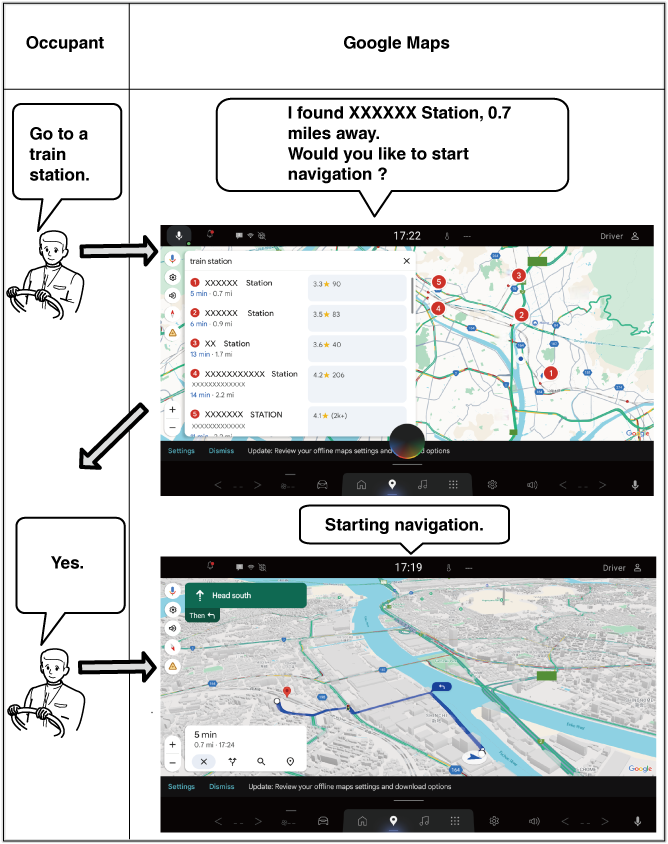
Google Assistant suggests an item from a list of destinations
A list of relevant destinations is displayed on Google Maps and Google Assistant starts suggesting a destination from the top of the list. Replying “Yes” to this prompt starts navigation towards it, while replying “No” causes Google Assistant to suggest the next item on the list.
Go to (location category/brand/location name)
-
Go to a [destination]
-
Go to [destination]
-
Navigate to a [destination]
-
I want to go to a [destination]
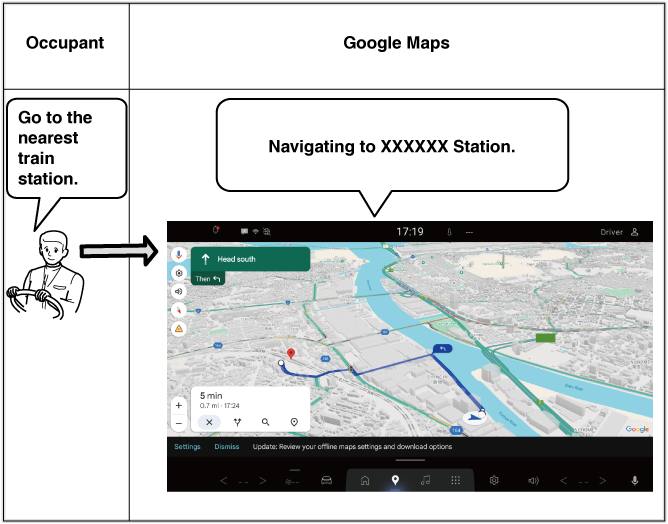
Navigation towards the destination begins immediately
Google Assistant replies to the command and starts towards the destination location immediately.
Go to the nearest (location category/brand/location name)
-
Go to the nearest [destination]
-
Navigate to the closest [destination]
-
Go to [destination name]
The route towards the destination is displayed
Google Assistant replies to the command and displays a route to the destination location. Navigation can be started by operating Google Maps on the screen.
I want to go to the nearest (location category/brand/location name)
-
I want to go to the nearest [destination]
-
I want to go to [destination name]
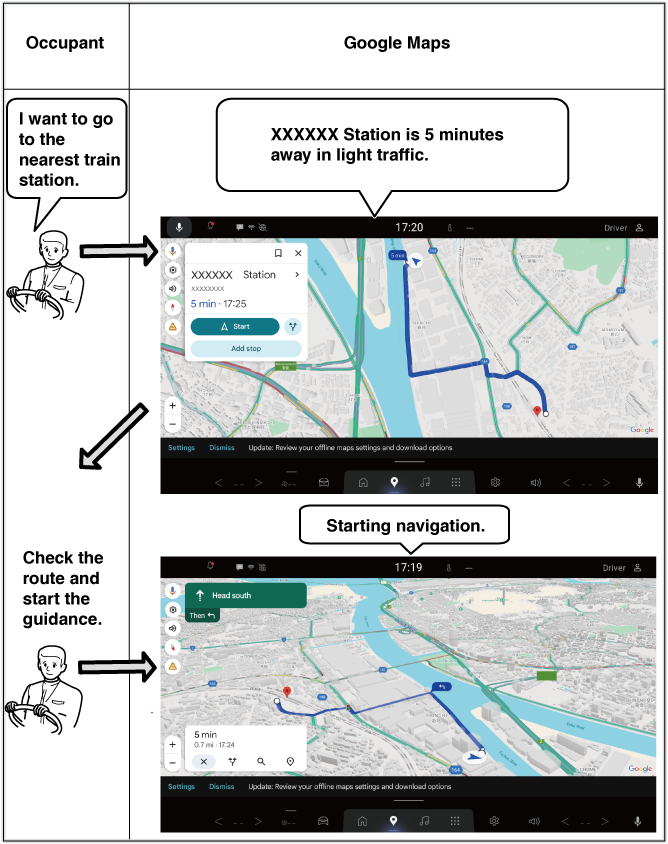
The illustrations are for illustrative purposes only and may differ from the actual response.