Android Auto
Android Auto is an application which allows the operation of an Android™ smartphone using Mazda Connect. Android Auto functions such as the phone, messages, music, and map can be used with Mazda Connect.
Do not allow the cord connected to the USB port to get tangled in the selector lever.
If the cord gets tangled, it could be a distraction to your driving and result in an unexpected accident.


For the purposes of safety, do not operate your Android™ smartphone while driving.
Disconnect the Android™ smartphone when it is not in use. If the device is left in the cabin, it could be damaged or the battery may weaken due to the excessive temperature or humidity inside the cabin.
If the Android™ smartphone battery has deteriorated, it may not recharge or play audio even if it is connected to this unit.
Do not place items or apply force to the USB port or console box lid with the plug connected.
Depending on the portable audio device to be connected, noise may occur when using the device with it connected to the accessory power socket equipped on the vehicle (if noise occurs, do not use the accessory power socket).
Before use, carefully read the user instructions for the Android™ smartphone.
Do not use Mazda Connect for a long time with the engine stopped. Otherwise, the lead-acid battery power could be depleted.
Insert the plug into the USB port securely.
Connecting an Android™ smartphone
(USB connection)
Insert an Android™ smartphone-genuine connector cord into the USB port to connect the Android™ smartphone. Insert or pull out the plug with the plug perpendicular to the USB port hole.
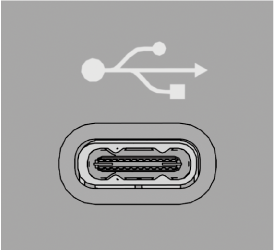
The location of the USB port differs depending on the vehicle model.
To use Android Auto, you need to enable Bluetooth®.
The parking brake must be applied when connecting your Android Auto device for the first time.
You can connect your Android™ smartphone in Android Auto mode.
If the Android™ smartphone is set to “Do Not Activate” on the Mazda Connect “Android Auto Activation Options” screen, Android Auto will not activate even if it is connected to the vehicle's USB port.
Set the Android™ smartphone that you want to use with Android Auto to “Automatically Activate” or “Always Ask”.
Refer to Settings (Search)
(Wireless connection)
Wireless access to Android Auto is available by connecting your Android™ smartphone with Mazda Connect using Bluetooth® and Wi-Fi™.
There is no difference in the functions of an Android Auto when using the wireless connection and the USB connection.
If the Android™ smartphone is connected to the USB port while using the wireless connection, the Android™ smartphone battery is charged.
Connecting Android Auto for the first time
When connecting Android Auto for the first time, a confirmation screen concerning the Android Auto activation is displayed.
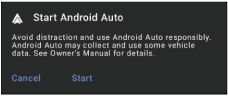
Cancel: Does not activate Android Auto.
Start: Activates Android Auto.
Displaying the Android Auto screen
Vehicles with Google built-in
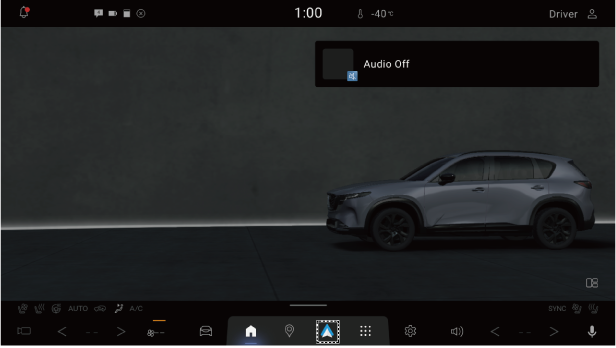
Vehicles without Google built-in
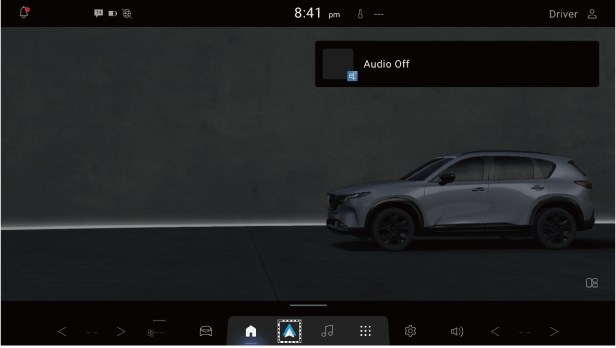
When Android Auto is connected,  is displayed on the navigation bar.
Touch to display the Android Auto screen.
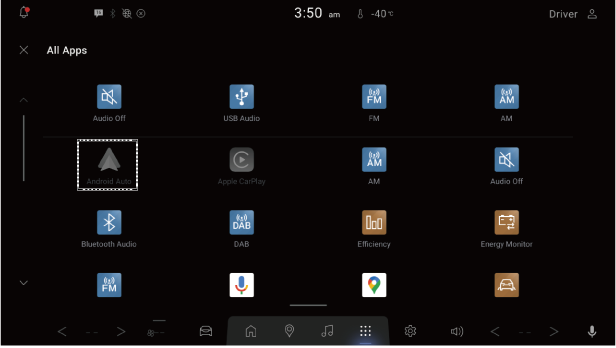
If the Android™ smartphone is not connected to Android Auto, tap  in All Apps to display the “Starting Android Auto” screen.
The registered Android™ smartphones are displayed on the “Starting Android Auto” screen.
Tap a displayed registered Android™ smartphone to activate Android Auto.
On the “Starting Android Auto” screen, you can register an Android™ smartphone using “Pair New Device” and delete it using “Delete Paired Device”.
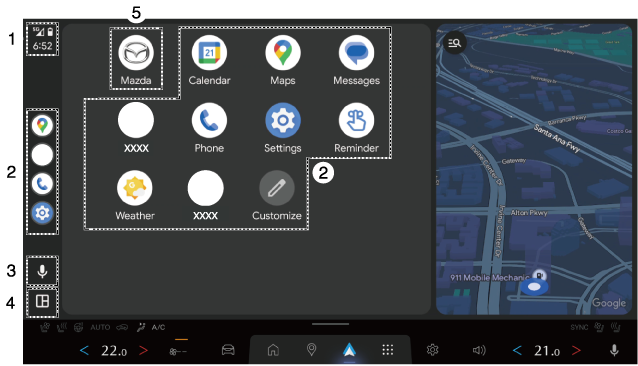
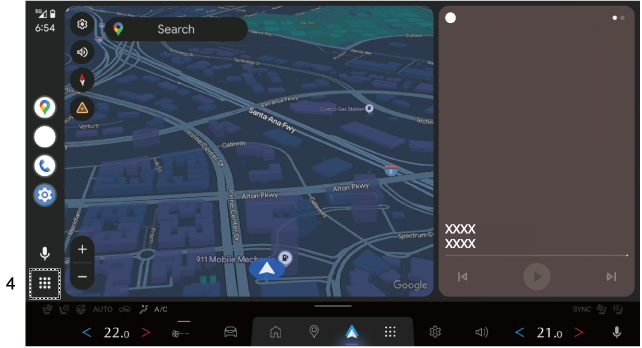
Android Auto screen
|
No. |
Explanation |
|---|---|
|
1 |
Displays the status of the smartphone connected to Android Auto. Tap to see a list of notifications received on your Android™ smartphone. |
|
2 |
Tap the icon to activate each application. |
|
3 |
Tap |
|
4 |
Tap |
|
5 |
Tap |
 to activate Google Gemini or Google Assistant for Android Auto.
 or
or  to switch screens.
 to display the Mazda Connect home screen.
Convenient ways to use Android Auto
|
Item |
Operation method |
|---|---|
|
To operate by voice |
Speak the phrase “Hey Google”.
(Vehicles with Google built-in) Press and hold (Vehicles without Google built-in) Press |
|
To display the NowPlaying screen |
Tap the entertainment widget on the Mazda Connect home screen.*1
(Vehicles without Google built-in) While playing music with Android Auto, touch |
|
To display the MAP screen |
Tap the map widget on the Mazda Connect home screen.*2
(Vehicles with Google built-in) Touch |
|
To display the Mazda Connect screen |
Touch |
 on the audio remote control switch to activate Google Gemini or Google Assistant on Android Auto while the Android Auto display screen is displayed.
 on the navigation bar to display the Android Auto playback screen.
 on the navigation bar while route guidance is being provided using Android Auto to display the Android Auto map screen.
 on the navigation bar to display the Mazda Connect home screen.
-
During music playback with Android Auto
-
During route guidance with Android Auto
Ending Android Auto
(USB connection)
To exit Android Auto, unplug the connection cord from the USB port or unplug the Android™ smartphone from the connection cord.
(Wireless connection)
To exit Android Auto, go to the “Device Settings” screen on Mazda Connect where the Android™ smartphone currently using Android Auto is displayed, and check “Disconnect”.