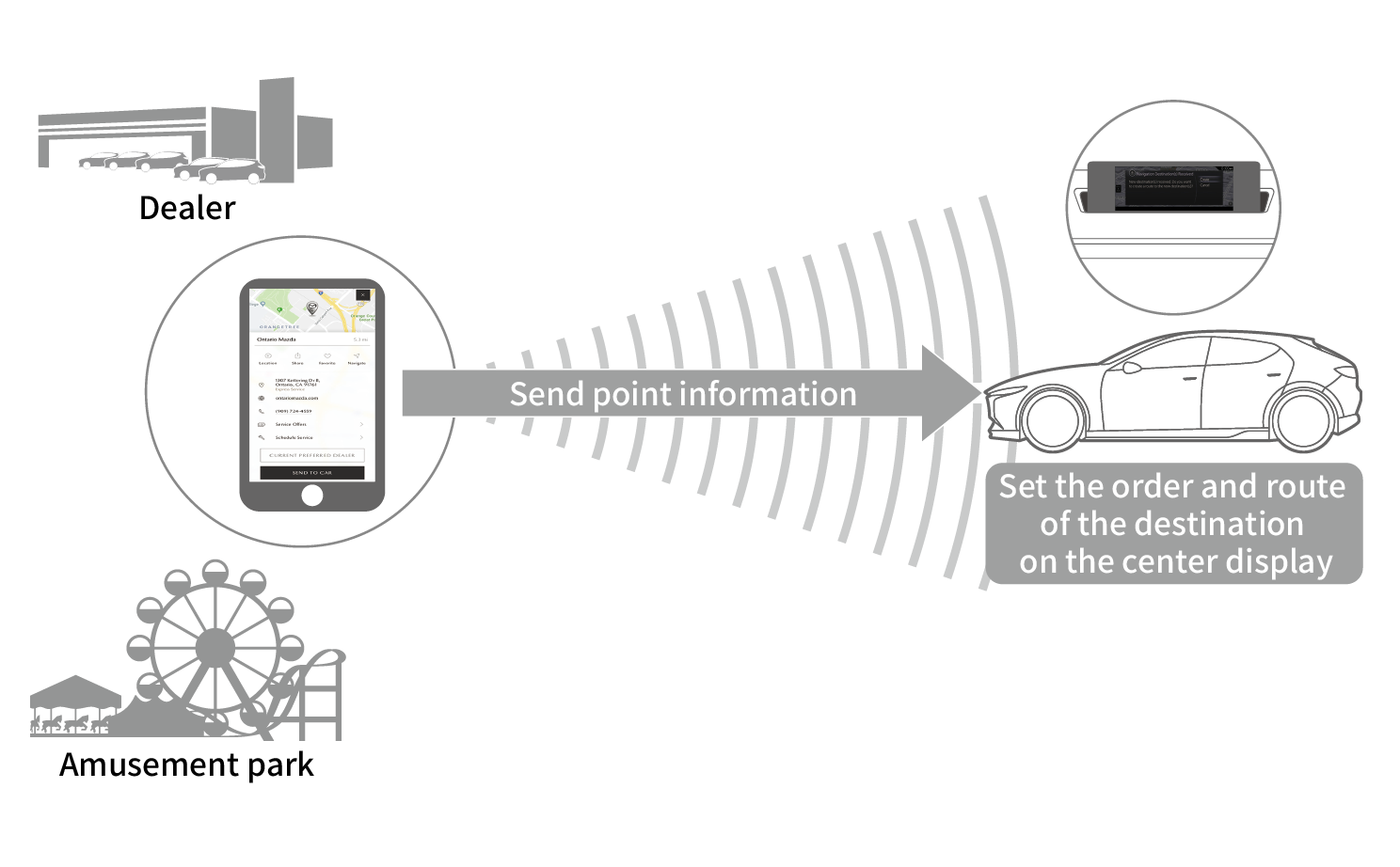
Before getting into the vehicle, a search for information can be carried out on a destination where navigation guidance is required using the MyMazda APP. This can then be sent to the vehicle as a destination.
Multiple destinations can be sent and the destination and places along the route can be sent all at once.
When the push button start / power switch is switched ON, the vehicle receives the information sent from your cell phone and the destination information is input on the center display.
Just set the route to the destination information on the center display and you can depart immediately.
To use this service, installation of a navigation SD card in the vehicle is necessary. For details, consult an Authorized Mazda Dealer.
If you receive a destination when driving in the vehicle, avoid any distractions and do not divert your attention away from driving the vehicle.
To use the navigation system, the SD card containing the map information needs to be inserted in the SD card slot.
Send to Car can send up to three destinations concurrently.
Navigation pathways must be set for the respective destinations received.
When sending multiple destinations, it is convenient to send them all at once instead of sending them one after another.
When the push button start / power switch is switched OFF, the vehicle cannot receive the destination. When the push button start / power switch is switched ON, the sent destination is received.
If a location where a route search is not possible such as over water is sent, the destination of the navigation route will not be set by the vehicle.
Up to 10 destinations can be set to the navigation route. If you exceed the maximum number of destinations sent by Send to Car, either discard the routes the vehicle already set and set the received destination as the new destination, or cancel the received destination.
When editing a navigation pathway, refer to the NAVIGATION SYSTEM Owner’s Manual.
When Sending One Destination
Pick your destination that was searched from the map.
Touch SEND TO CAR.
The destination is automatically received by the vehicle.
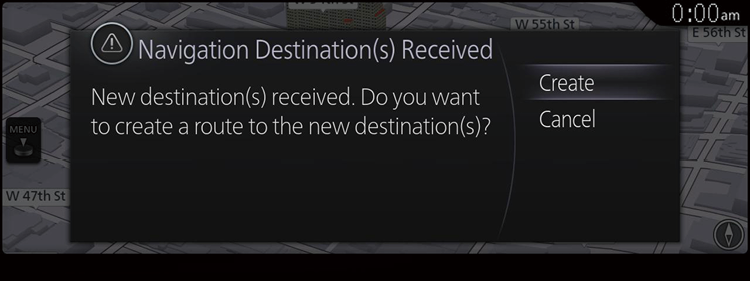
If a Navigation Route Has Not Been Created by the Vehicle
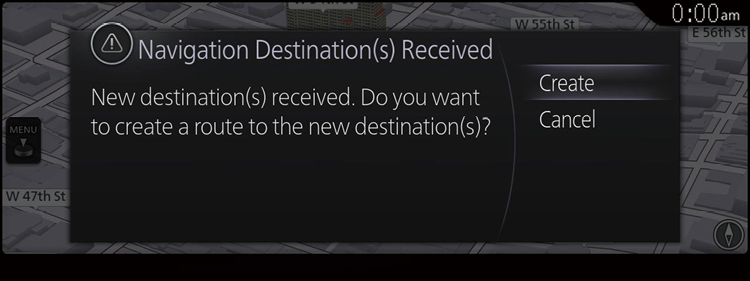
When setting the route using the received destination, select [Create] and edit the navigation route.
*The screen display varies depending on the vehicle model.
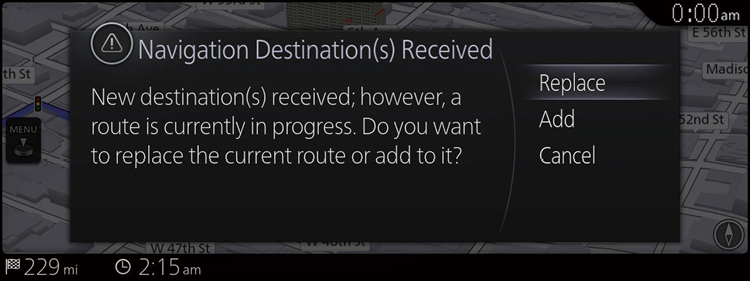
If a Navigation Route Setting by the Vehicle Has Been Completed
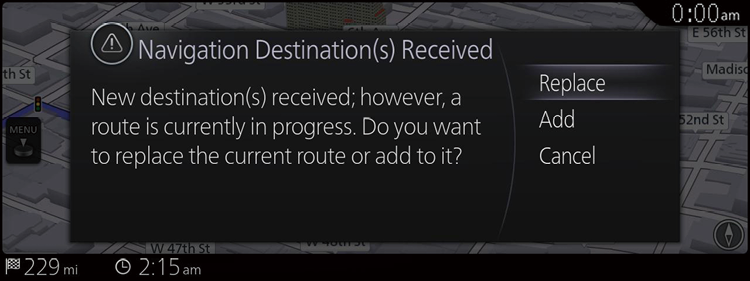
Select whether the received destination is to be set as a new destination or to be added to the existing route.
To discard the existing route and set a new route, select [Replace].
To add to the existing route, select [Add] and edit the navigation route for each destination.
*The screen display varies depending on the vehicle model.
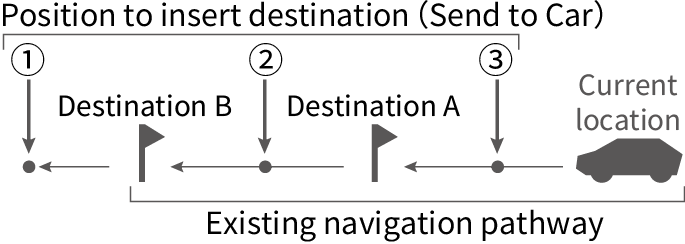
When adding a destination to an existing navigation route, select a position to insert as shown in the figure.
Add (2), (3) as transit points with (1) as the final destination.
When Sending Multiple Destinations
Pick your destination that was searched from the map.
Touch [Location] (), and add the second destination.
For the last spot, touch SEND TO CAR, which collectively sends points up to this point to the vehicle.
Up to three destinations can be sent at a time. Touch [Location] at the first and second destinations, then touch SEND TO CAR at the third destination to send the three destinations.
The same destination cannot be sent repeatedly.
The destinations are automatically received by the vehicle.
If a Navigation Route Has Not Been Created by the Vehicle
When setting the route using the received destination, select [Create] and edit the navigation route.
*The screen display varies depending on the vehicle model.
If a Navigation Route Setting by the Vehicle Has Been Completed
Select whether the received destination is to be set as a new destination or to be added to the existing route.
To discard the existing route and set a new route, select [Replace].
To add to the existing route, select [Add] and edit the navigation route for each destination.
*The screen display varies depending on the vehicle model.
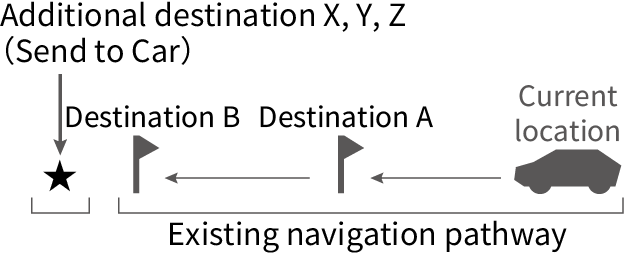
If destinations are to be added to the existing navigation route, they are inserted in the ★ area in the order they were set in the MyMazda APP. If the positions differ from your intended positions, edit the navigation route to arrange the order of the destinations.
Last Kilometre Navigation (Canada Only)
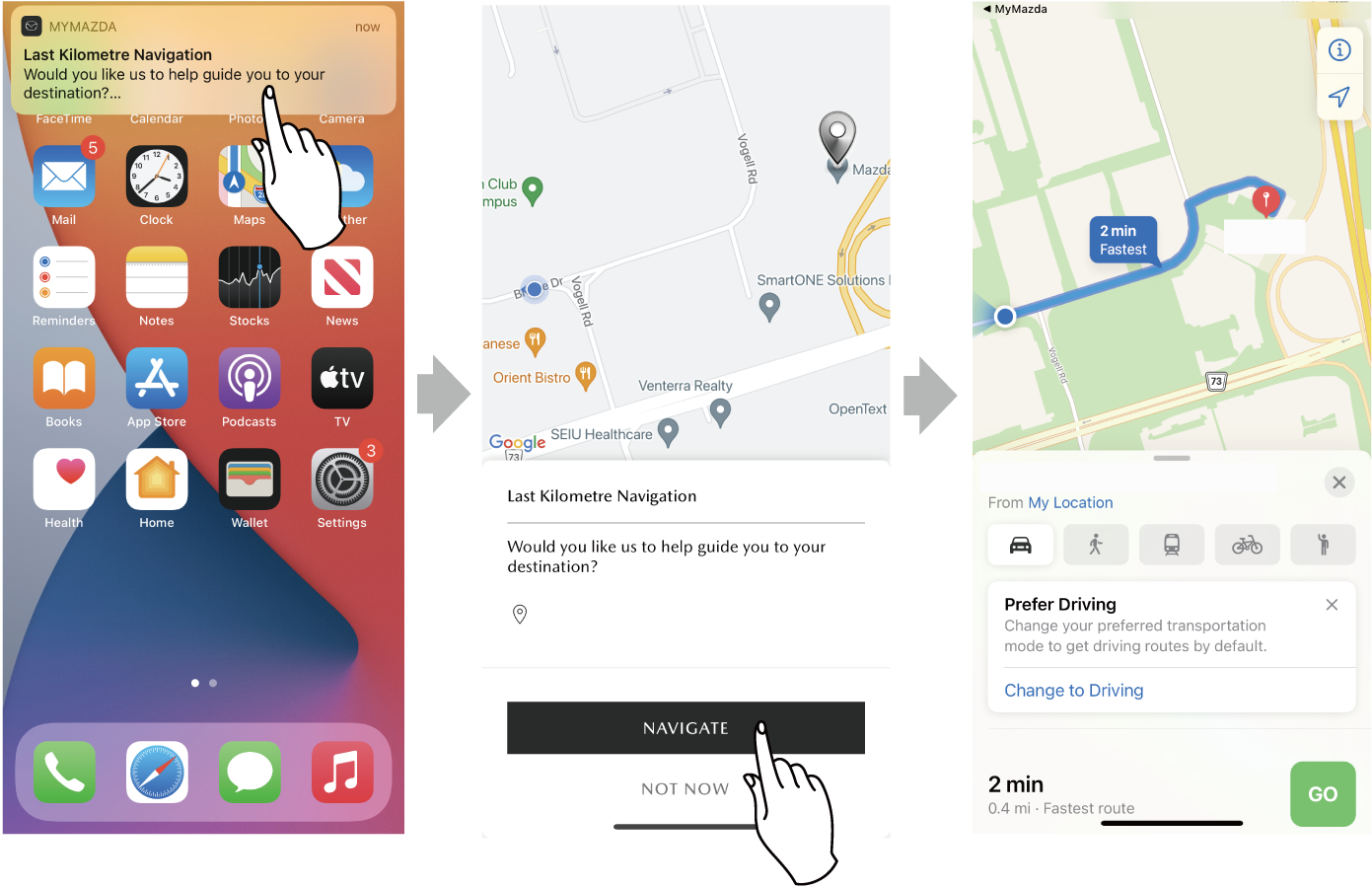
When you are near your destination, a notification will be sent to your cell phone, and a screen to guide you to your final destination is displayed.
Stop the vehicle in a safe location before using.
When the cell phone enters within a radius of 500 m from the destination, a notification will be sent to the cell phone and Apple Watch.
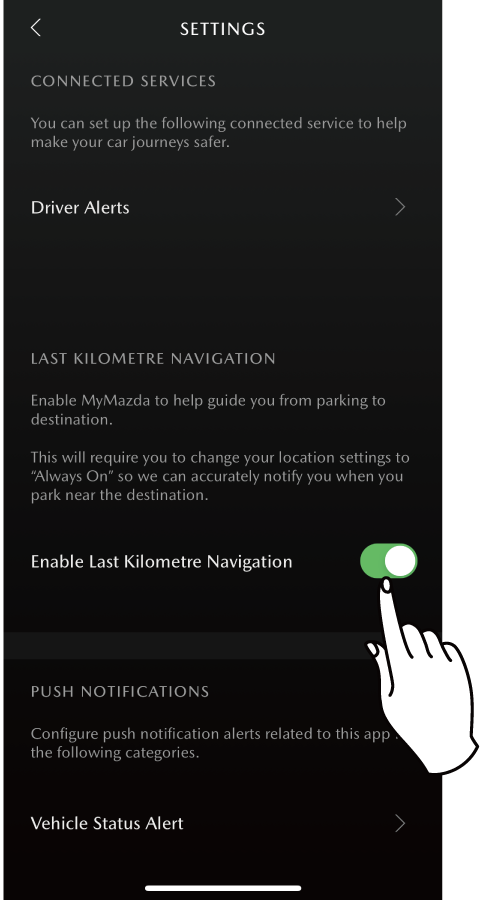
You can turn the Last Kilometre Navigation function on/off the first time you use the Send to Car function. (Configuration can be changed later)
To use the Last Kilometre Navigation function, you may need to always have the location information on your cell phone enabled.